Precautions for cleaning up residual Software after uninstalling Industrial Control Computer software

Essential Precautions for Cleaning Software Uninstallation Residues on Industrial Control Computers
Industrial control computers (ICCs) require meticulous maintenance to ensure operational reliability, especially when removing software applications. Incomplete uninstallation can leave behind registry entries, configuration files, and service dependencies that may cause system conflicts, performance degradation, or security vulnerabilities. This guide provides detailed precautions for thoroughly cleaning software residues from ICC environments.
Comprehensive Uninstallation Process
Proper Uninstallation Sequence
Follow manufacturer-recommended uninstallation procedures rather than simply deleting program folders. Key steps include:
- Using the application’s built-in uninstall utility (often found in the Start menu or program directory)
- Running uninstallation as an administrator to ensure full system access
- Verifying that all components are removed through progress indicators
- Checking for confirmation messages indicating complete removal
A chemical plant experienced system instability after manually deleting a SCADA application folder instead of using its official uninstaller, leaving behind active services that conflicted with newly installed software.
Registry Entry Management
The Windows registry often contains application-specific settings that require cleanup:
- Backup the registry before making changes (using “regedit” export function)
- Navigate to “HKEY_LOCAL_MACHINE\SOFTWARE” and “HKEY_CURRENT_USER\SOFTWARE” to locate application keys
- Delete only entries clearly associated with the uninstalled software
- Exercise caution with shared registry values that might affect other applications
An automotive assembly line avoided configuration errors by creating registry backups before removing legacy MES software entries, preventing accidental deletion of shared system parameters.
File System Cleanup
Beyond program directories, check these locations for residual files:
- “ProgramData” folder for application-specific data
- “AppData” subfolders (Local, LocalLow, Roaming) for user-specific configurations
- Temporary files directories (usually in “Windows\Temp”)
- Shared system folders like “Common Files” for DLL dependencies
A power distribution company recovered 12GB of disk space by cleaning residual files from multiple uninstalled energy management applications, including hidden configuration files in the ProgramData directory.
System-Level Verification
Service Dependency Checks
Many industrial applications install background services that must be properly terminated:
- Open “Services.msc” to review running services
- Identify services associated with the uninstalled application
- Stop services before removal and verify they don’t restart automatically
- Check for dependent services that might fail when primary services are removed
A water treatment facility prevented system crashes by manually stopping three interdependent services before uninstalling their legacy control software, avoiding automatic restart attempts that caused memory leaks.
Driver Verification
Hardware-related software often installs device drivers that require special handling:
- Open “Device Manager” to check for orphaned devices
- Right-click and select “Uninstall device” for any remaining entries
- Check for hidden devices using the “View > Show hidden devices” option
- Verify that no residual drivers are consuming system resources
An oil refinery resolved communication errors with their PLC network by removing ghost drivers left behind after uninstalling obsolete fieldbus configuration software.
Environment Variable Inspection
Applications may modify system environment variables that need restoration:
- Open “System Properties > Advanced > Environment Variables”
- Check both user and system variables for application-specific paths
- Remove entries pointing to uninstalled software directories
- Verify that PATH variable entries remain valid for other applications
A food processing plant corrected compilation errors in their control system by removing obsolete Java development kit paths from their system environment variables after uninstalling older development tools.
Advanced Cleanup Techniques
Scheduled Task Review
Many industrial applications create automated tasks that persist after uninstallation:
- Open “Task Scheduler” to inspect all task libraries
- Look for tasks with names matching the uninstalled application
- Check for tasks that reference deleted file paths
- Disable or delete orphaned tasks to prevent execution errors
A pharmaceutical company prevented daily error logs by removing 17 scheduled tasks left behind after uninstalling their quality control reporting software.
User Profile Cleanup
Application residues may remain in individual user profiles:
- Navigate to “C:\Users[username]\AppData” for profile-specific data
- Check “Local\Temp” and “Roaming” subfolders for application caches
- Inspect “Start Menu” and “Desktop” for residual shortcuts
- Consider creating a new user profile if cleanup proves too complex
A semiconductor manufacturer reduced login times by 40% after cleaning multiple user profiles of residual entries from uninstalled design automation tools.
System Restore Point Creation
Before major cleanup operations:
- Create a manual system restore point (“Create a restore point” in System Properties)
- Document the current system state including running processes
- Verify the restore point contains all critical system files
- Test the restore functionality before proceeding with extensive cleanup
A power generation plant avoided prolonged downtime by successfully restoring their system to a pre-cleanup state when an aggressive registry cleaning attempt accidentally disabled their HMI software.
Security Considerations
Permission Auditing
Review and reset permissions modified by the uninstalled software:
- Check folder permissions in Program Files and ProgramData
- Verify registry key permissions haven’t been altered
- Ensure service accounts retain appropriate privileges
- Restore default permissions where applications made changes
A transportation control center prevented unauthorized access attempts by auditing and resetting folder permissions that an uninstalled traffic management system had modified to grant excessive access rights.
Vulnerability Scanning
Run security scans after cleanup to detect potential weaknesses:
- Use enterprise vulnerability assessment tools
- Check for open ports that might have been exposed by the application
- Verify no residual services are listening on network interfaces
- Ensure no unpatched components remain from the uninstalled software
A water management authority identified and patched a critical vulnerability in a legacy library that had been exposed when they uninstalled outdated water quality monitoring software.
Audit Trail Preservation
Maintain records of all cleanup operations:
- Document each step taken during the uninstallation process
- Record registry keys and files removed
- Note any system changes made during cleanup
- Archive logs from monitoring tools used during the process
An energy distribution company maintained compliance with regulatory requirements by preserving detailed logs of their cleanup procedures when removing obsolete grid management software.
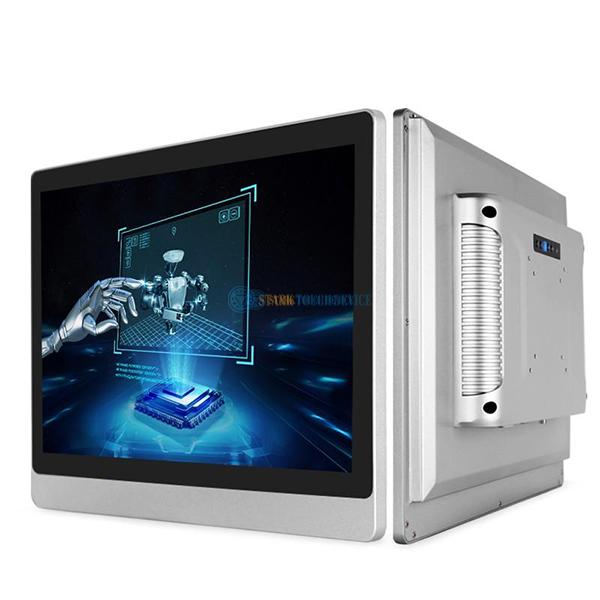
Our company was founded in 2015 by a group of enthusiastic industrial hardware professionals who share a common passion for Iron Man Tony Stark. With their extensive theoretical knowledge and industry experience, the company was born out of a desire to create a high-tech product company in the computer hardware field, aiming to become the “Iron Man” of the computer industry. We specialize in OEM/ODM services, providing high-quality industrial computer production and research and development. Our product forms include touch display monitors, touch all-in-one machines, ruggedized tablets, various new-generation advertising machines, and specialized computers for harsh environmental applications. Our goal is to help customers achieve business value through innovative and high-quality products.Official website address:https://www.starktouchdevice.com/
